
Apollo Group TV - Cash App Guide
Need a different guide? Click hereStep 1
Before starting, make sure your Cash App account is verified (Cash App requires identity verification to buy and send cryptocurrency) and that you have a linked debit card or bank account.
Step 2
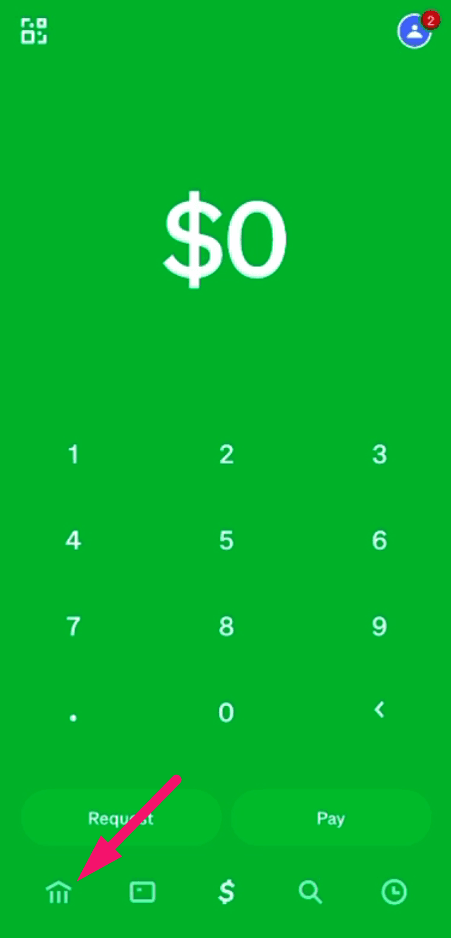
Open CashApp and press on home button.
Step 3
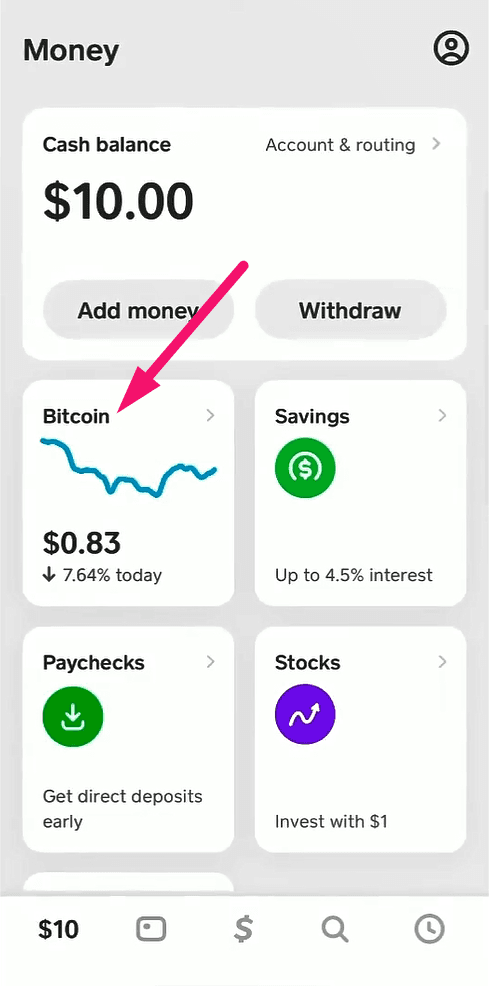
Press on Bitcoin.
Step 4
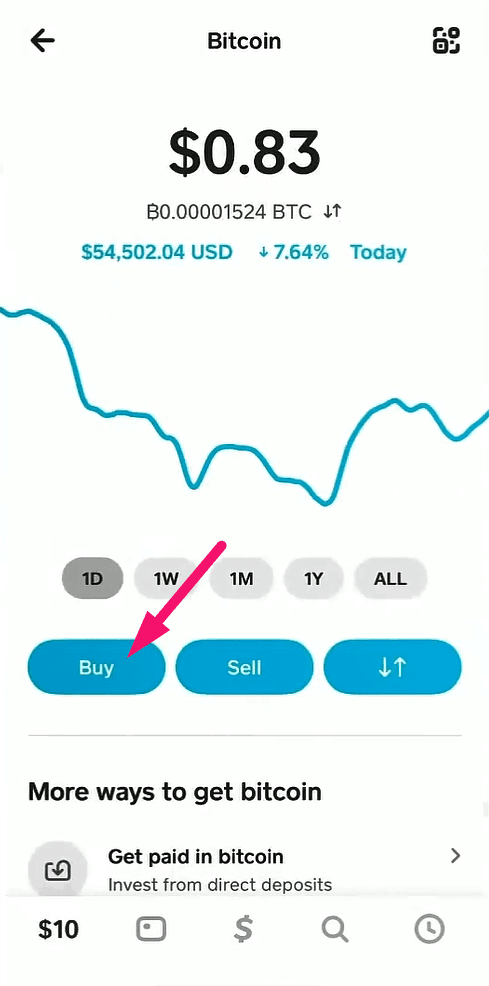
Press on Buy.
Step 5
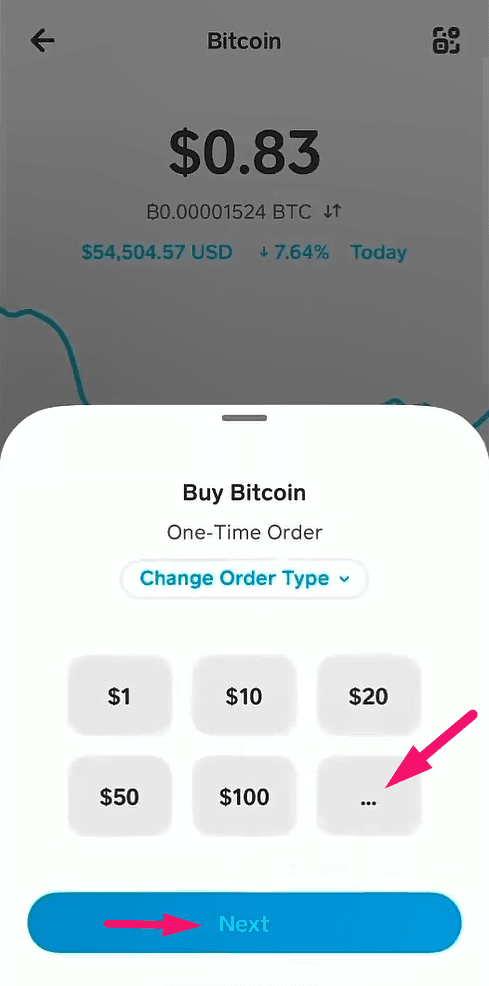
Press on three dots, enter the price of the subscription of your choice and press on Next.
NOTE: transaction fee could be around 5 USD.
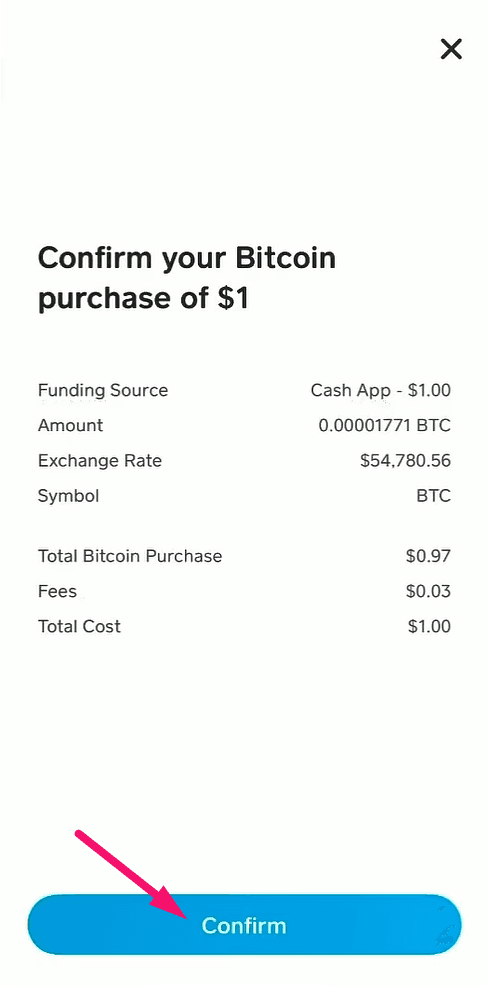
Step 6
Press on Confirm.
Step 7
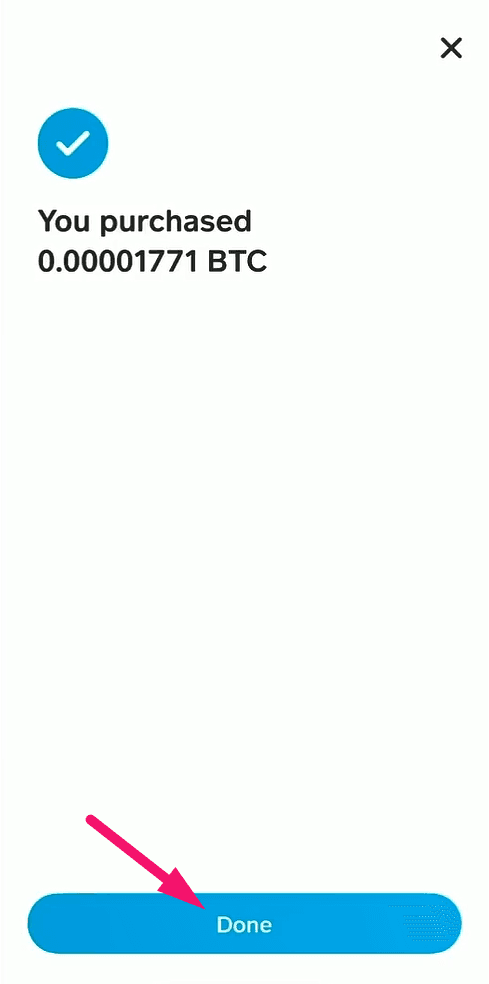
Press on Done.
Step 8
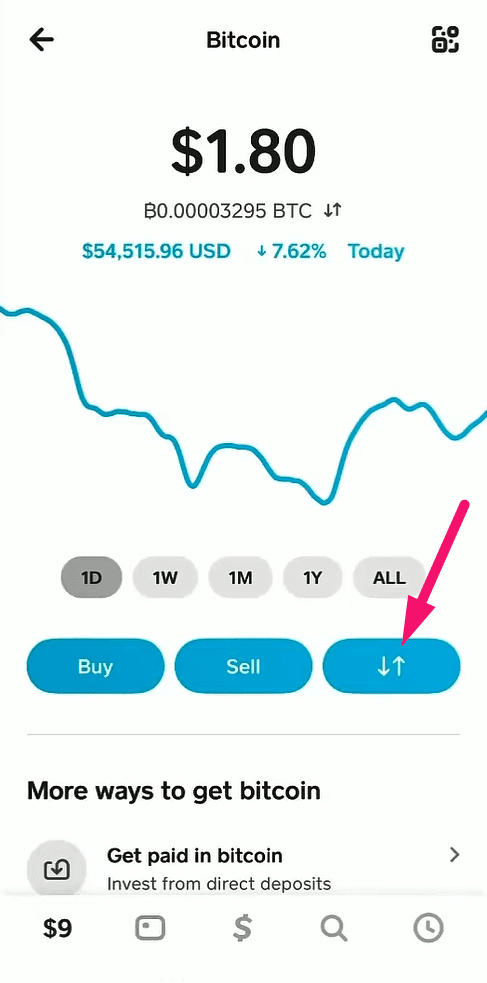
Press on transfer button.
Step 9
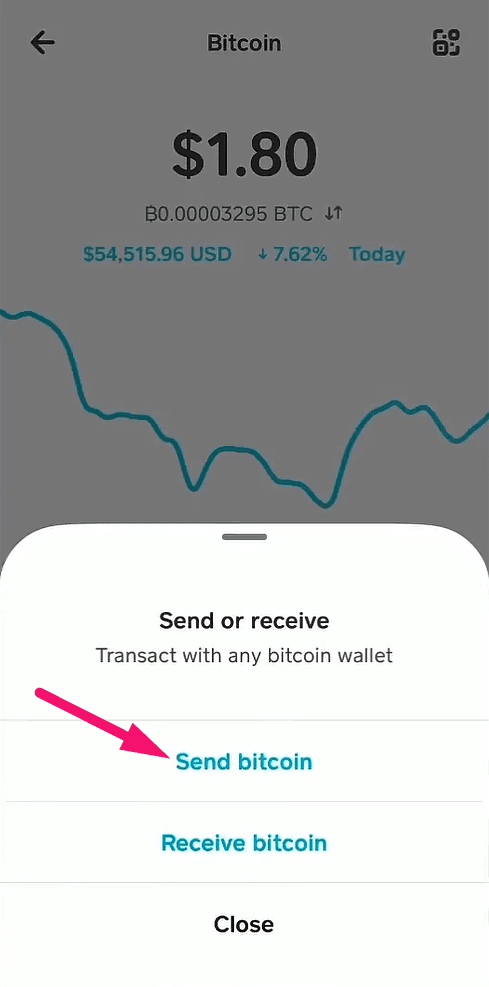
Choose Send bitcoin.
Step 10
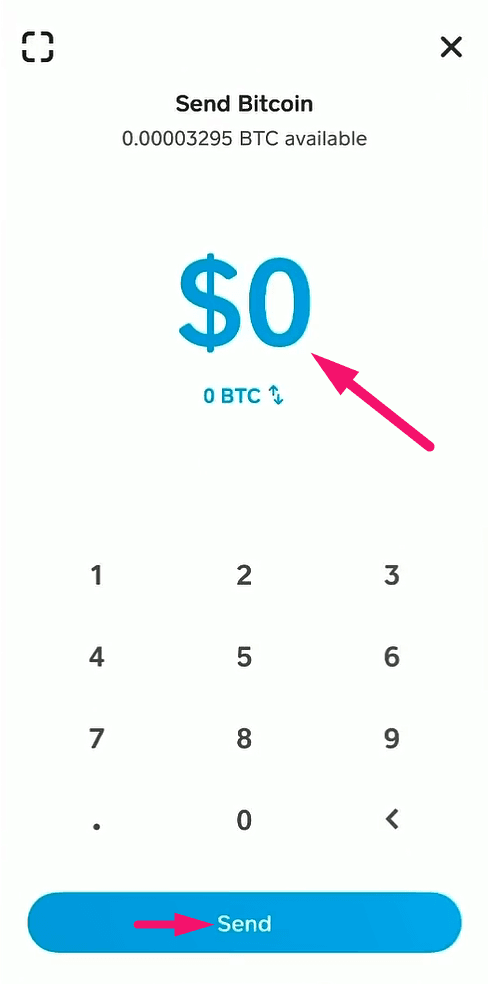
Fill in the price of the subscription of your choice and press on Send.
Step 11
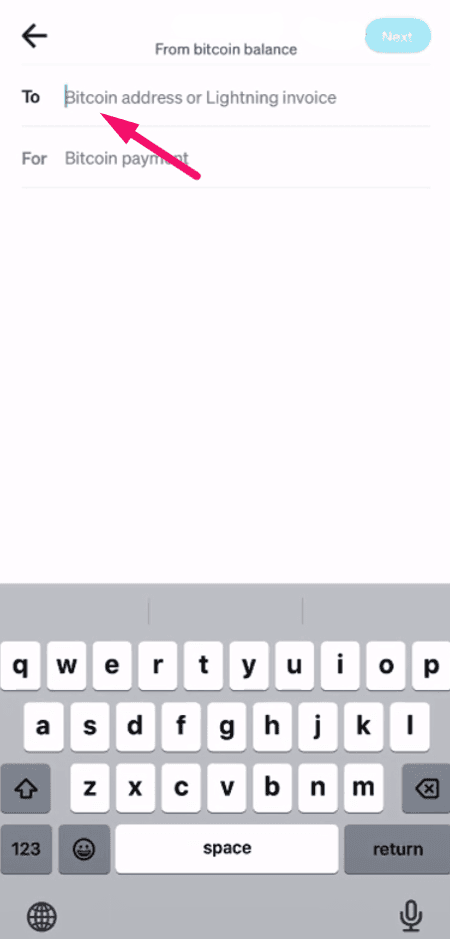
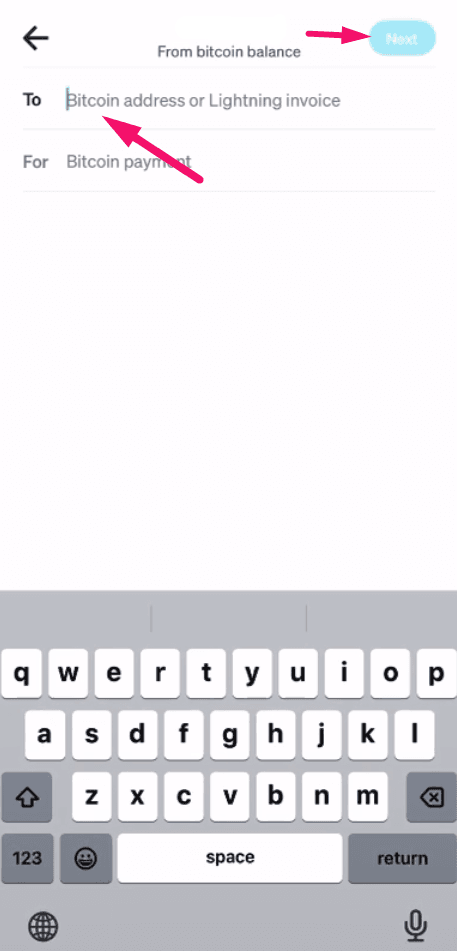
For us to receive your payment and activate the subscription you need to enter the correct BTC wallet address in this marked field. To find and copy the correct address follow the next steps.
Step 12
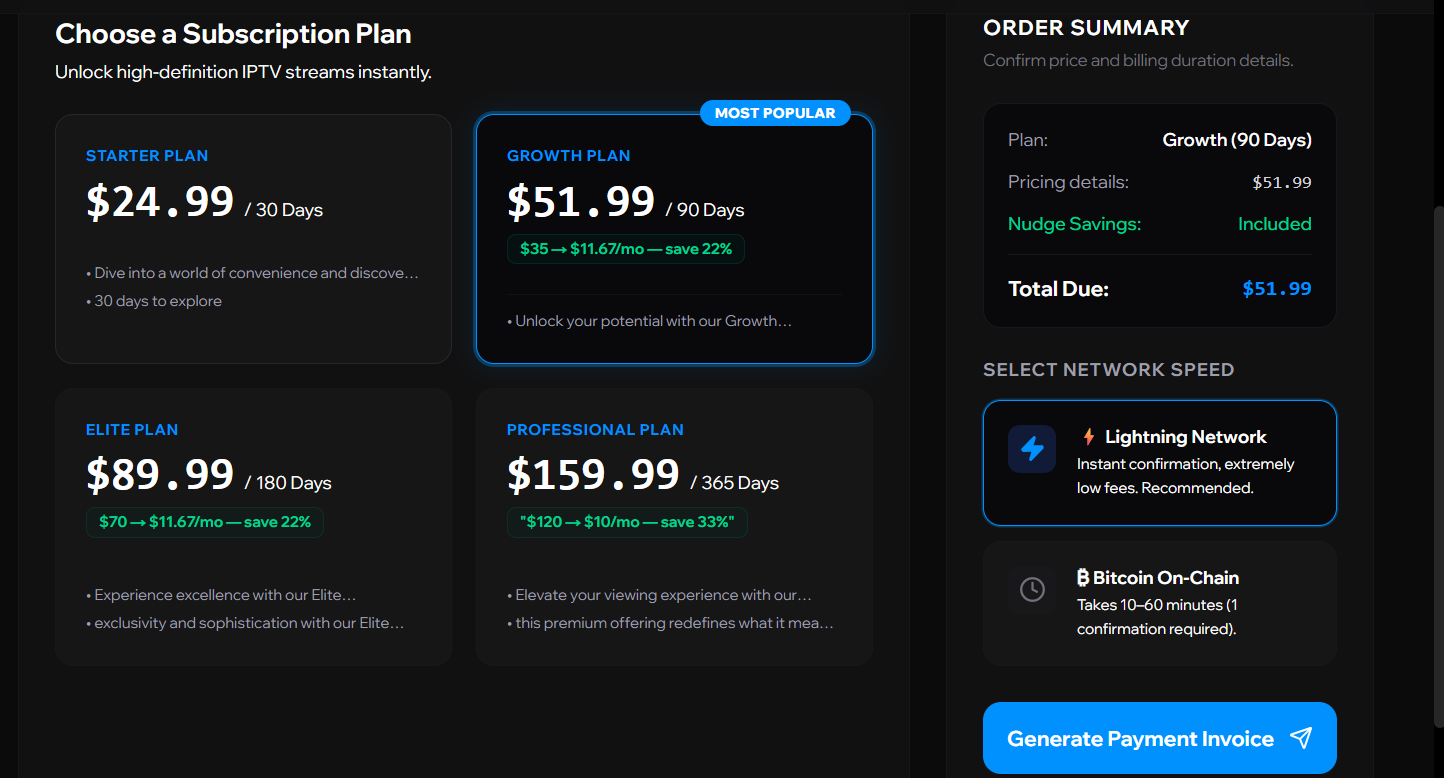
Log in to your Apollo Group TV client portal (the window you kept open) and navigate to the subscriptions tab. Select the subscription plan package you wish to purchase, choose your preferred network speed (Lightning Network is recommended for instant activation), and then click the blue 'Generate Payment Invoice' button.
Step 13
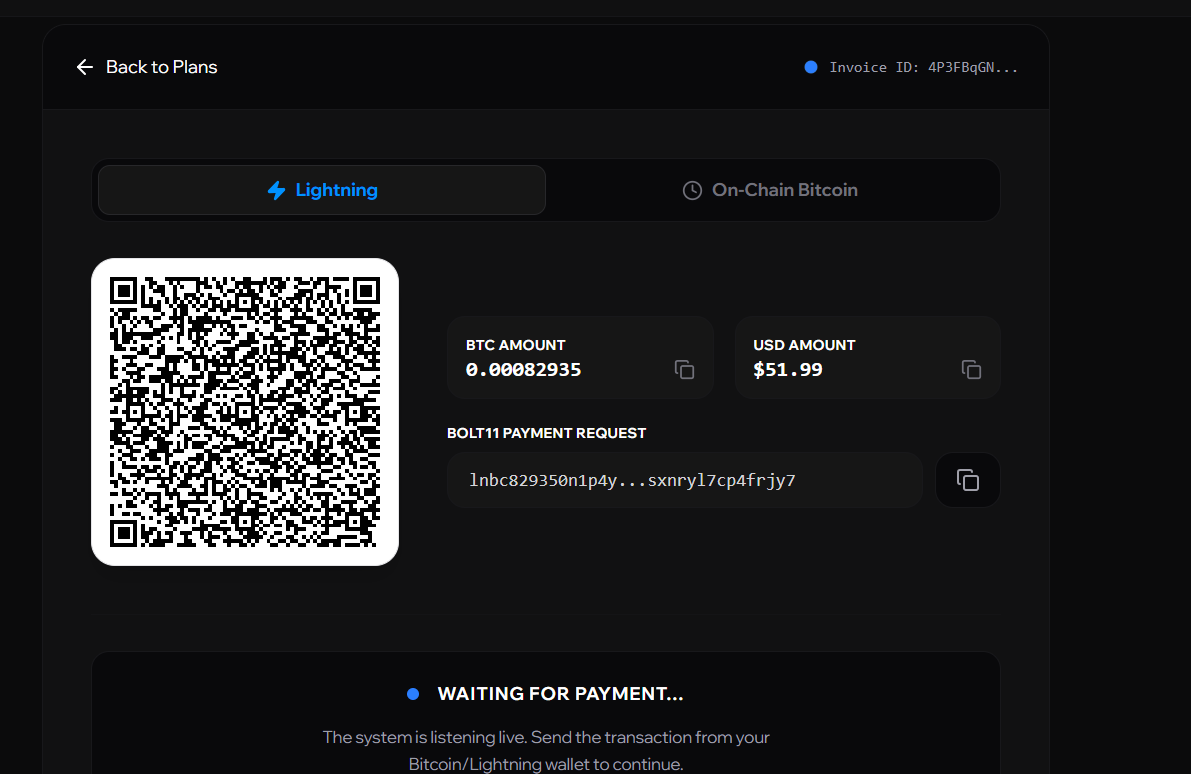
An invoice will be generated showing a payment QR code and a destination wallet address. You can copy the address string directly, or scan the QR code using your mobile device.
Step 14
Now switch back to Cash App on your mobile device. Paste the copied Bitcoin address (or Lightning invoice string) that you got in the previous step into the destination field at the top, and tap 'Next'.
Important NOTE: If you receive a 'wallet address not supported' message, it usually means the invoice has expired or the network type was mismatched. Simply go back to your Apollo account, click 'Back to Plans', and generate a new invoice by repeating from Step 12.
Step 15
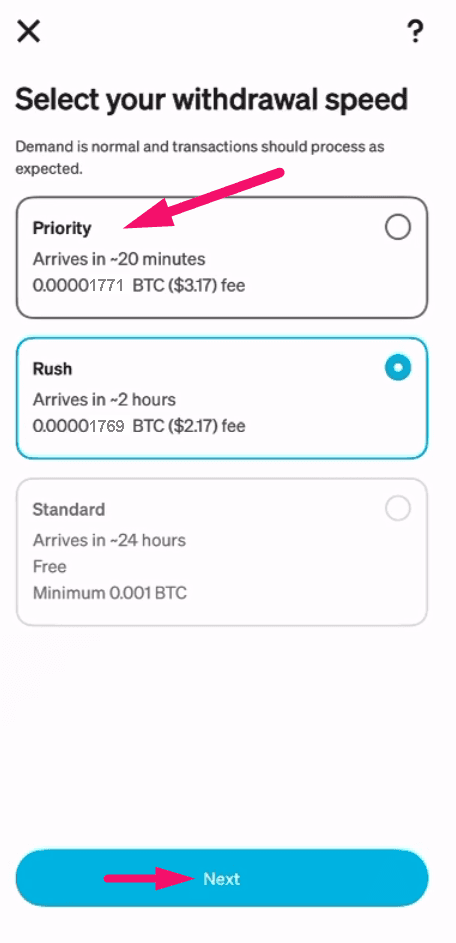
Select 'Priority' as the delivery speed option (this guarantees your transfer is processed by the network in under 10 minutes) and tap 'Next' to proceed.
Step 20