
Apollo Group TV - Revolut Guide
Need a different guide? Click hereStep 1
Before starting, ensure your Revolut account is funded with cash and your identity verification is complete.
Step 2
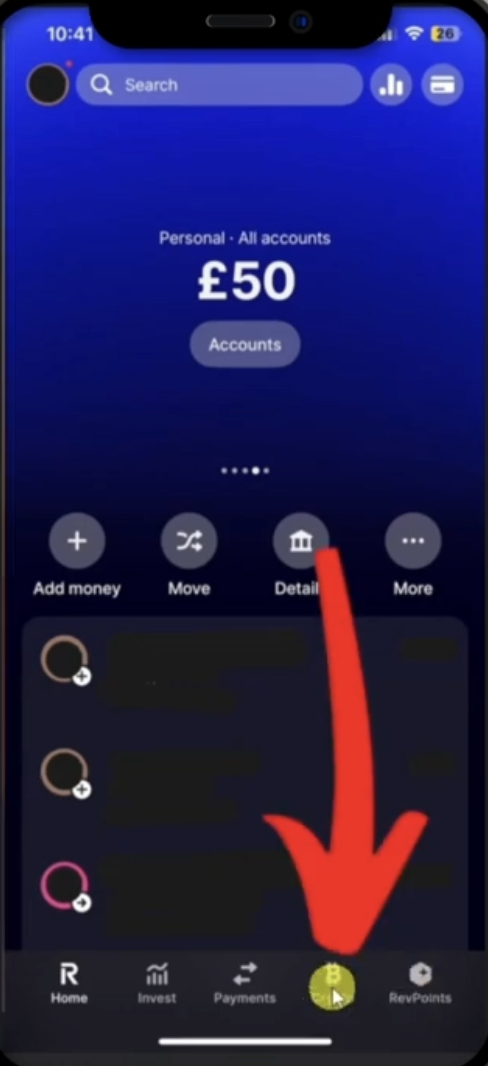
Open the Revolut app and tap on Crypto in the bottom navigation menu (or tap Hub and choose Crypto).
Step 3
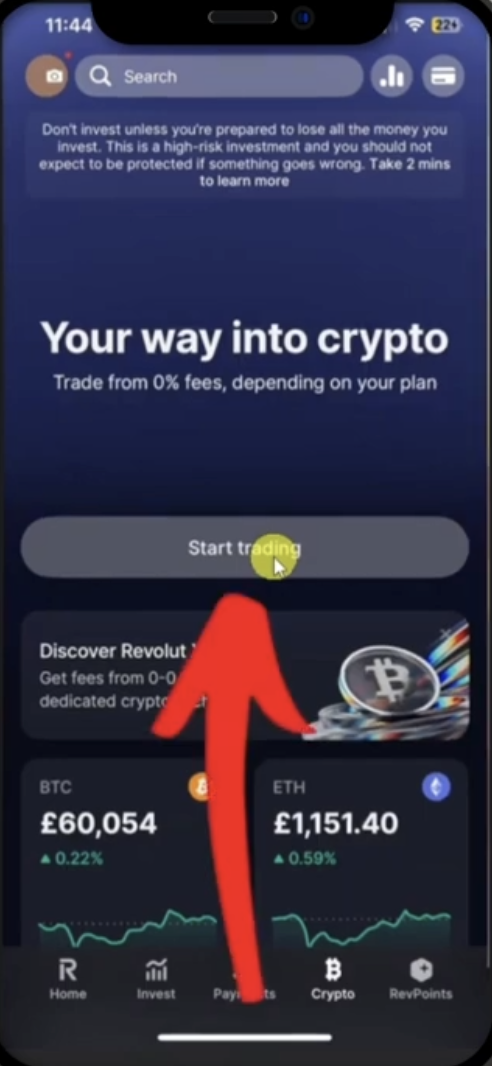
If this is your first time accessing crypto, tap on Start trading.
Step 4
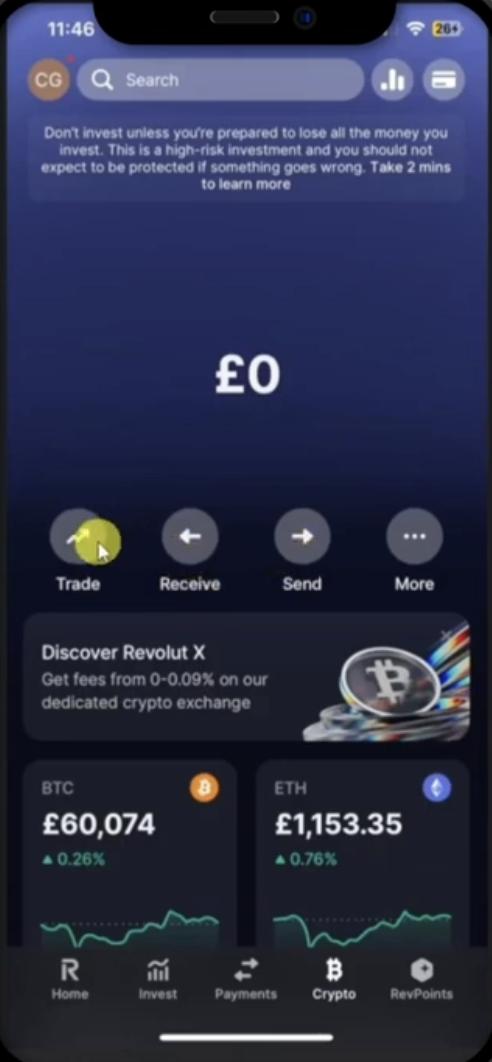
Tap on the Trade button.
Step 5
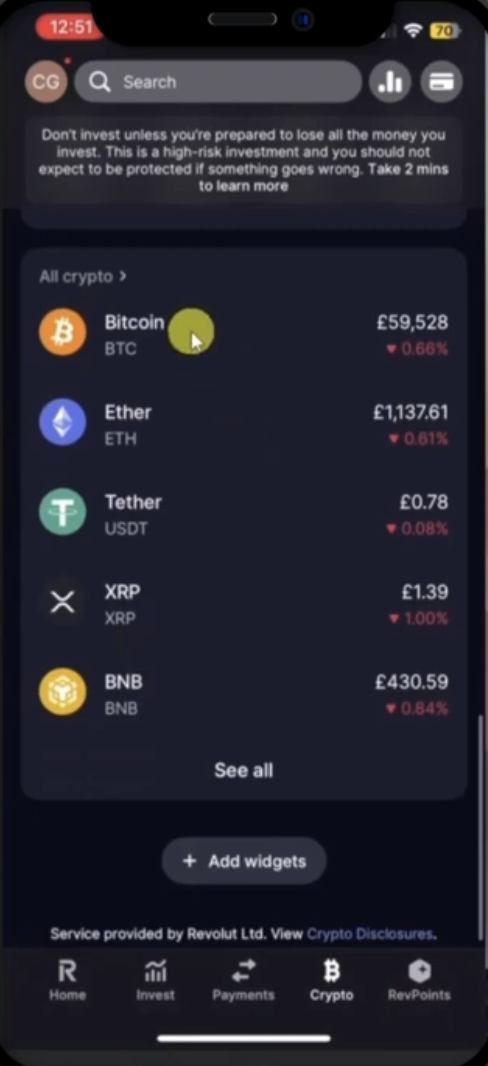
Select Bitcoin from the list of cryptocurrencies.
Step 6
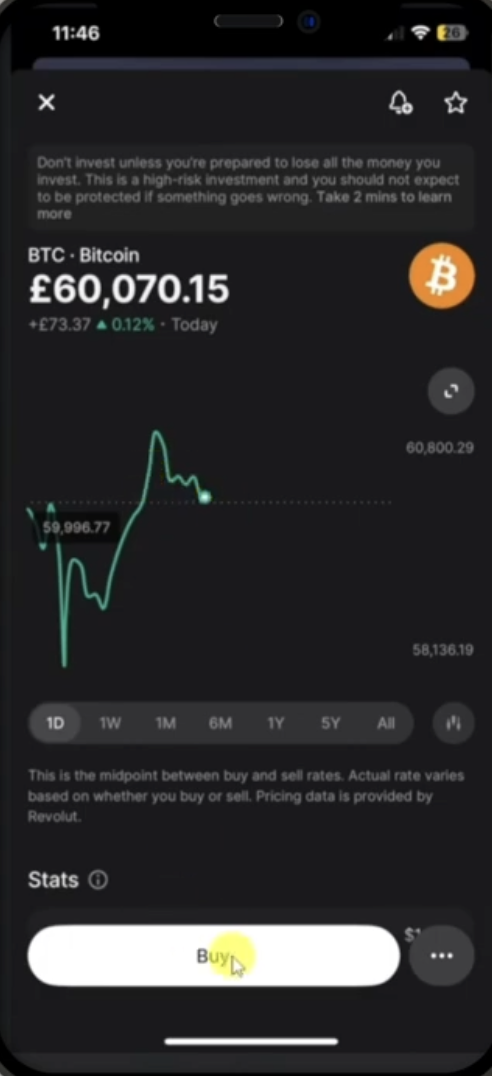
Tap on the white Buy button.
Step 7
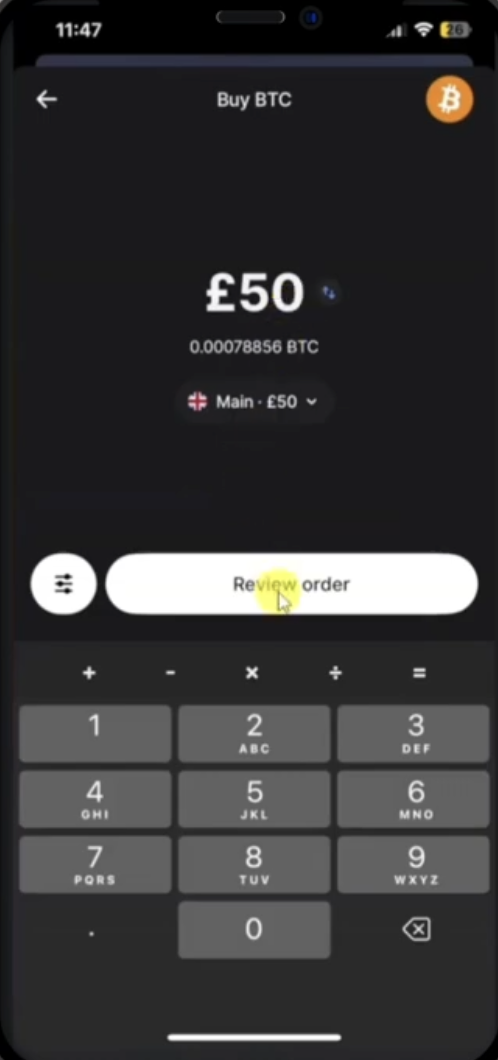
Enter the purchase amount required for your subscription plan, and tap Review order.
Step 8
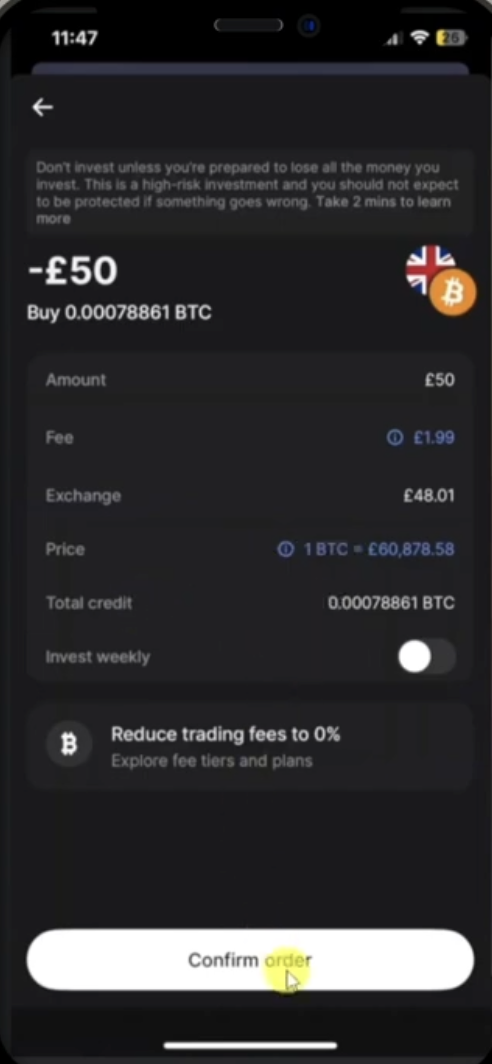
Review the transaction details and tap Confirm order.
Step 9
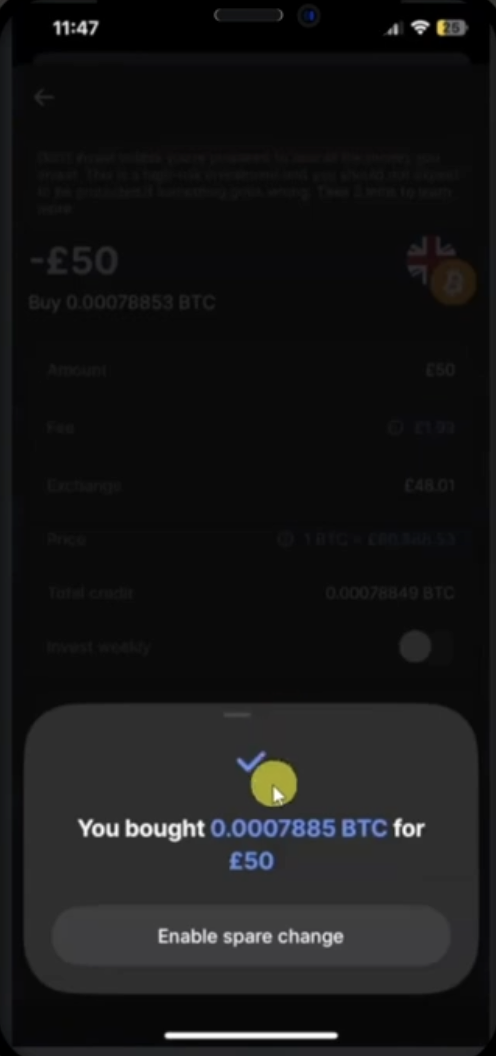
Once your purchase completes successfully, tap the checkmark to dismiss or continue.
Step 10
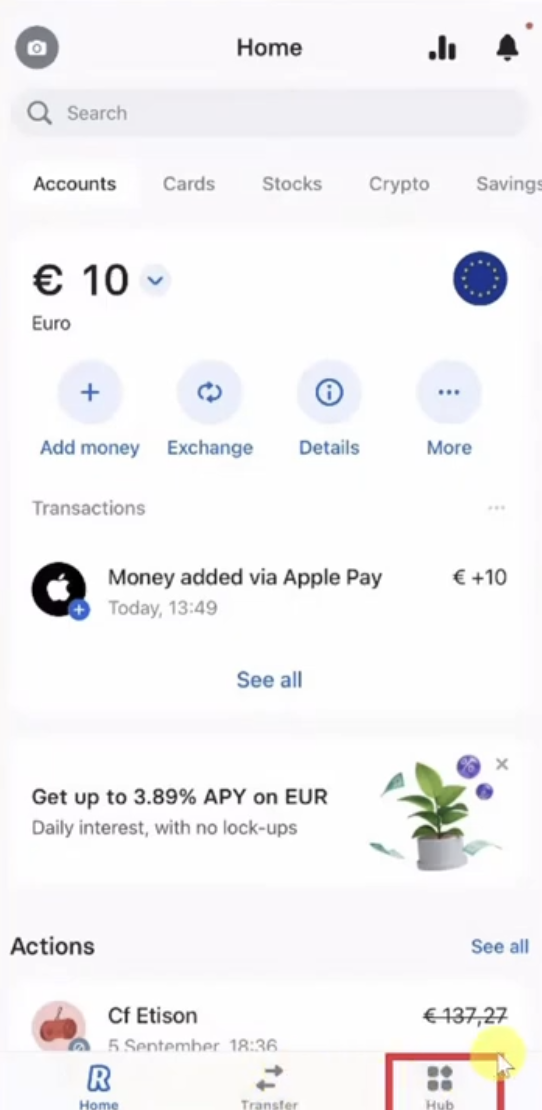
Now, to send the crypto, go back to the home screen and tap Hub (represented by four squares in the bottom navigation bar).
Step 11
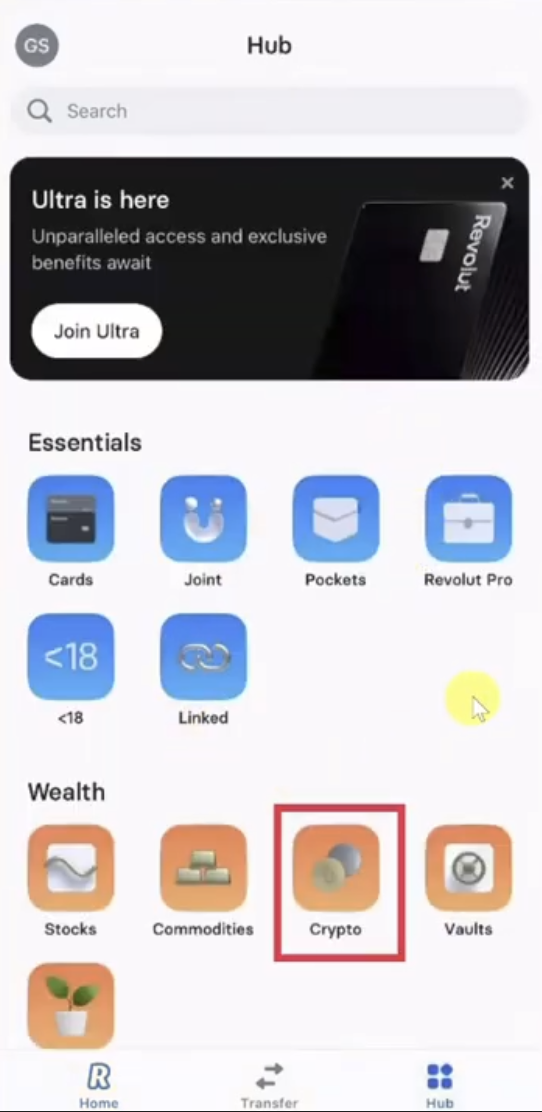
Select Crypto under the Wealth section.
Step 12
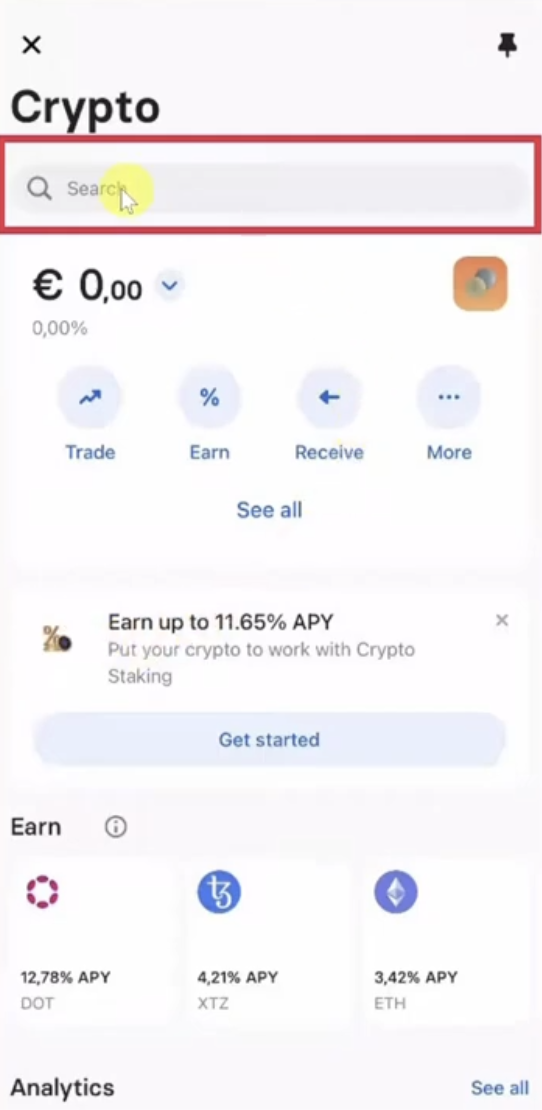
Tap on the Search bar at the top.
Step 13
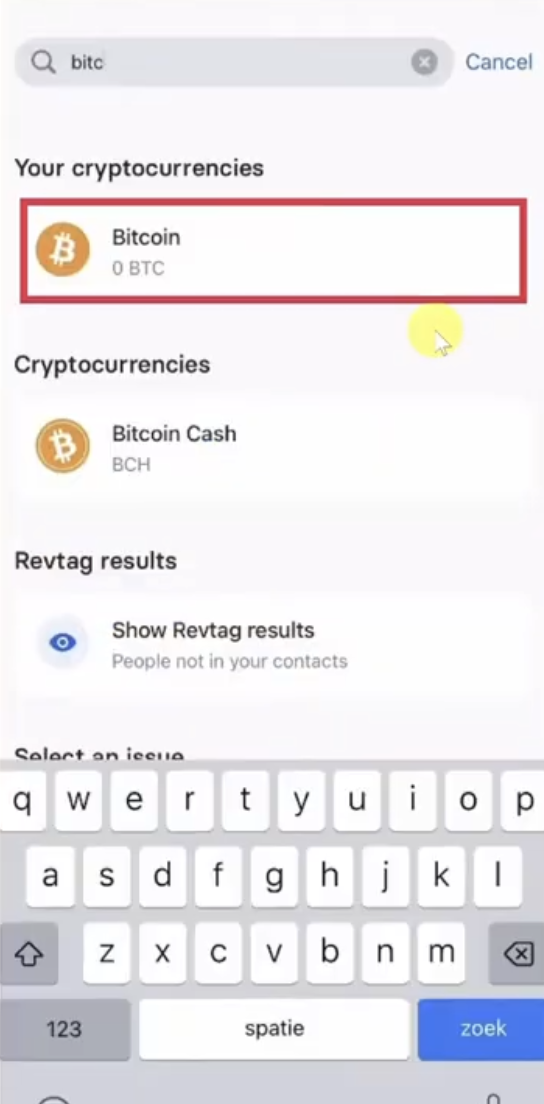
Search for "Bitcoin" and select Bitcoin from the search results.
Step 14
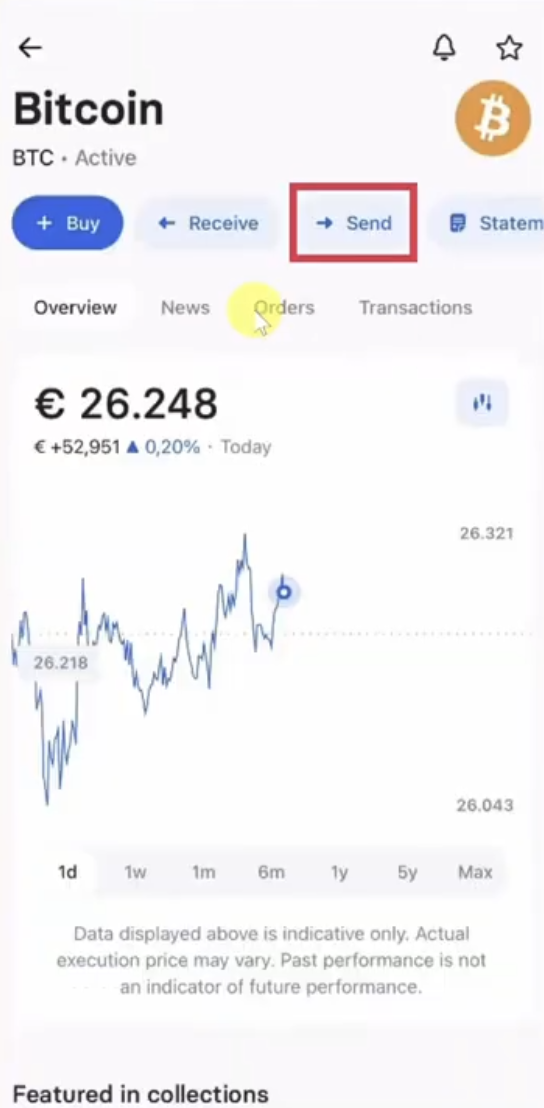
Tap the Send button on the Bitcoin details screen.
Step 15
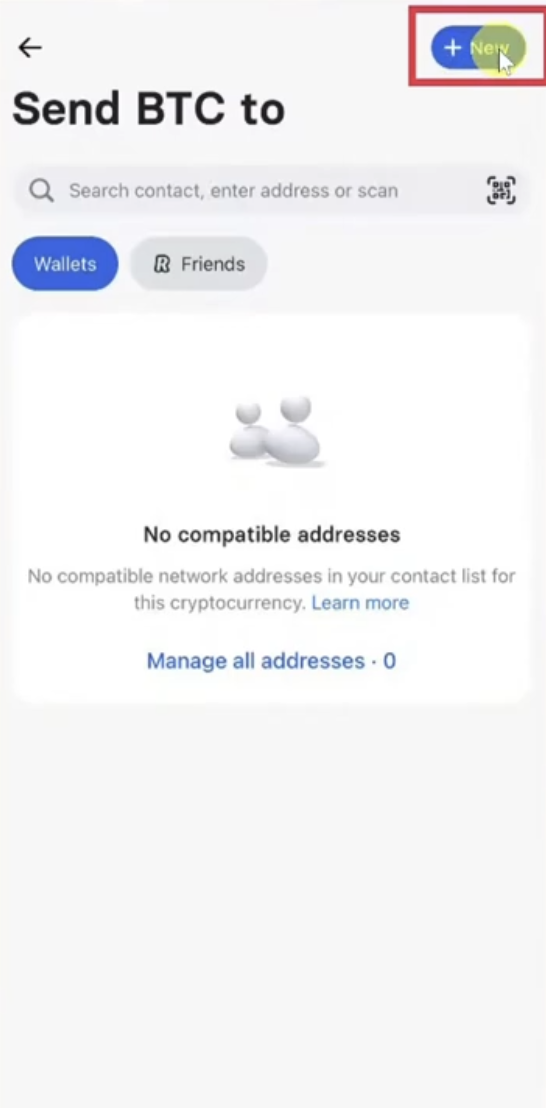
Tap the + New button at the top right corner.
Step 16
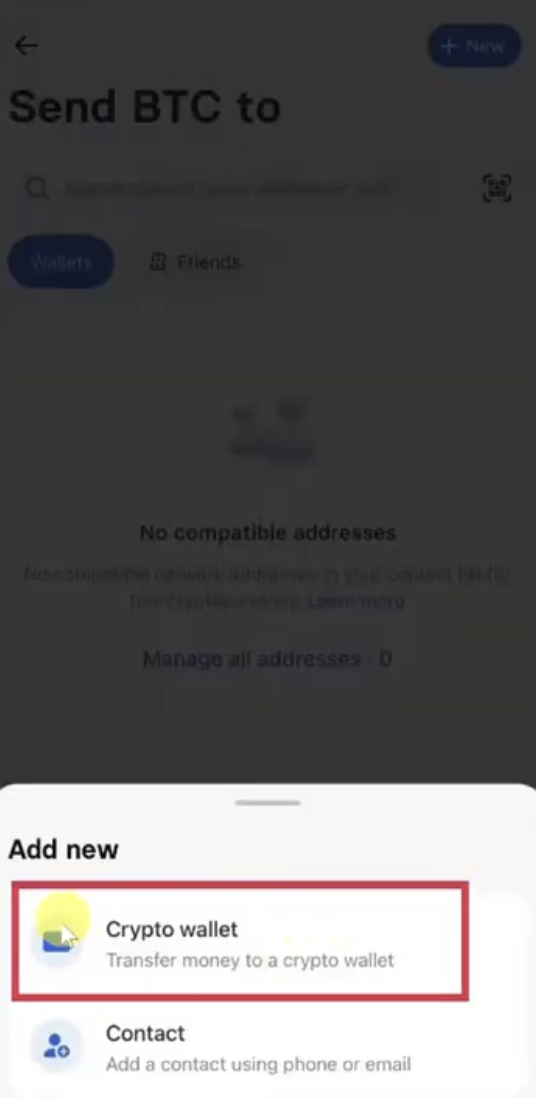
Select Crypto wallet (Transfer money to a crypto wallet) from the popup menu.
Step 17
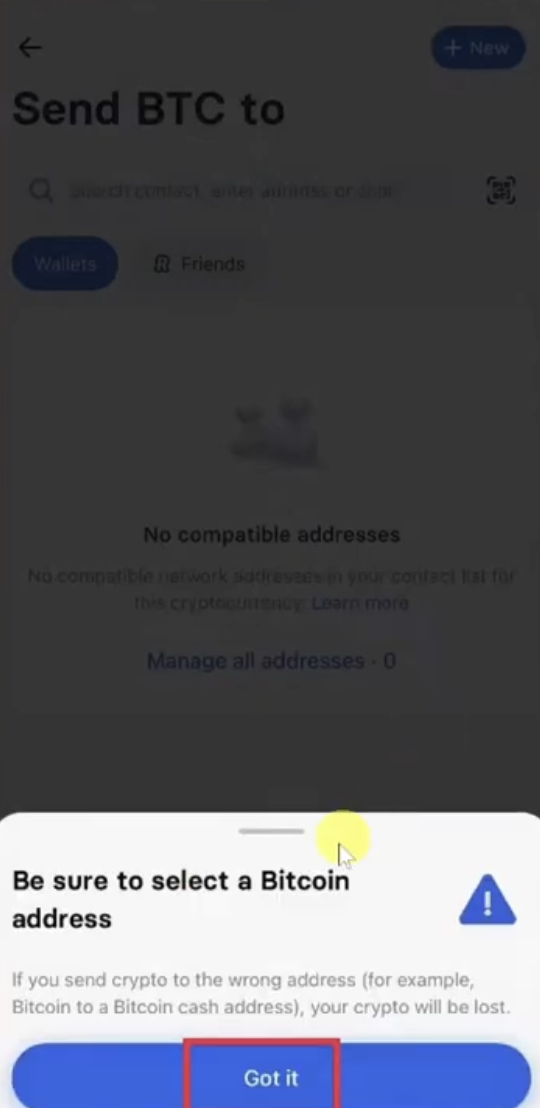
A warning popup will remind you to select a Bitcoin address. Tap Got it to proceed.
Step 18
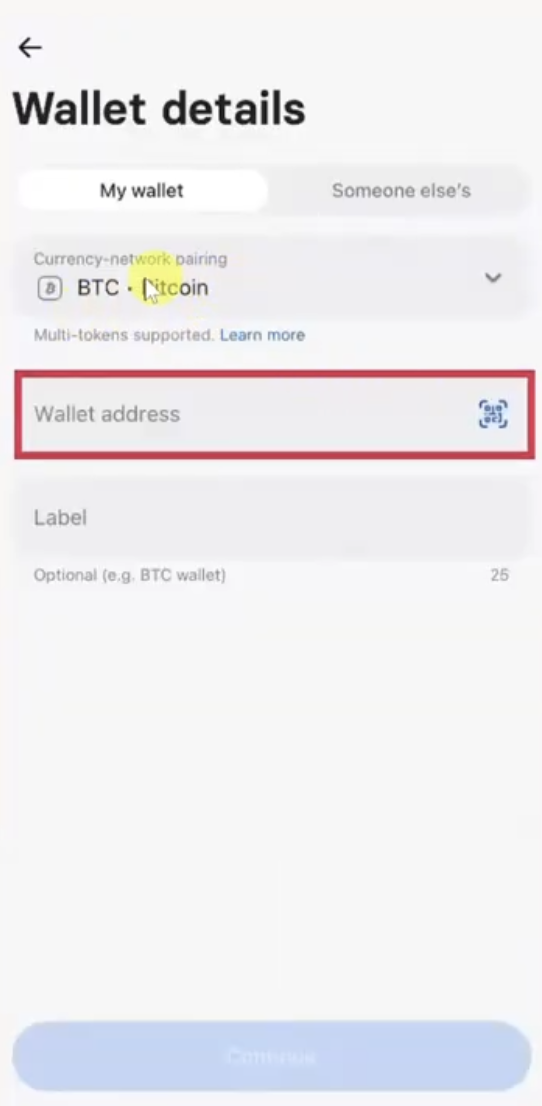
You will see a wallet address input field. To find and copy the correct address, keep Revolut running in the background and follow the next steps.
Step 19
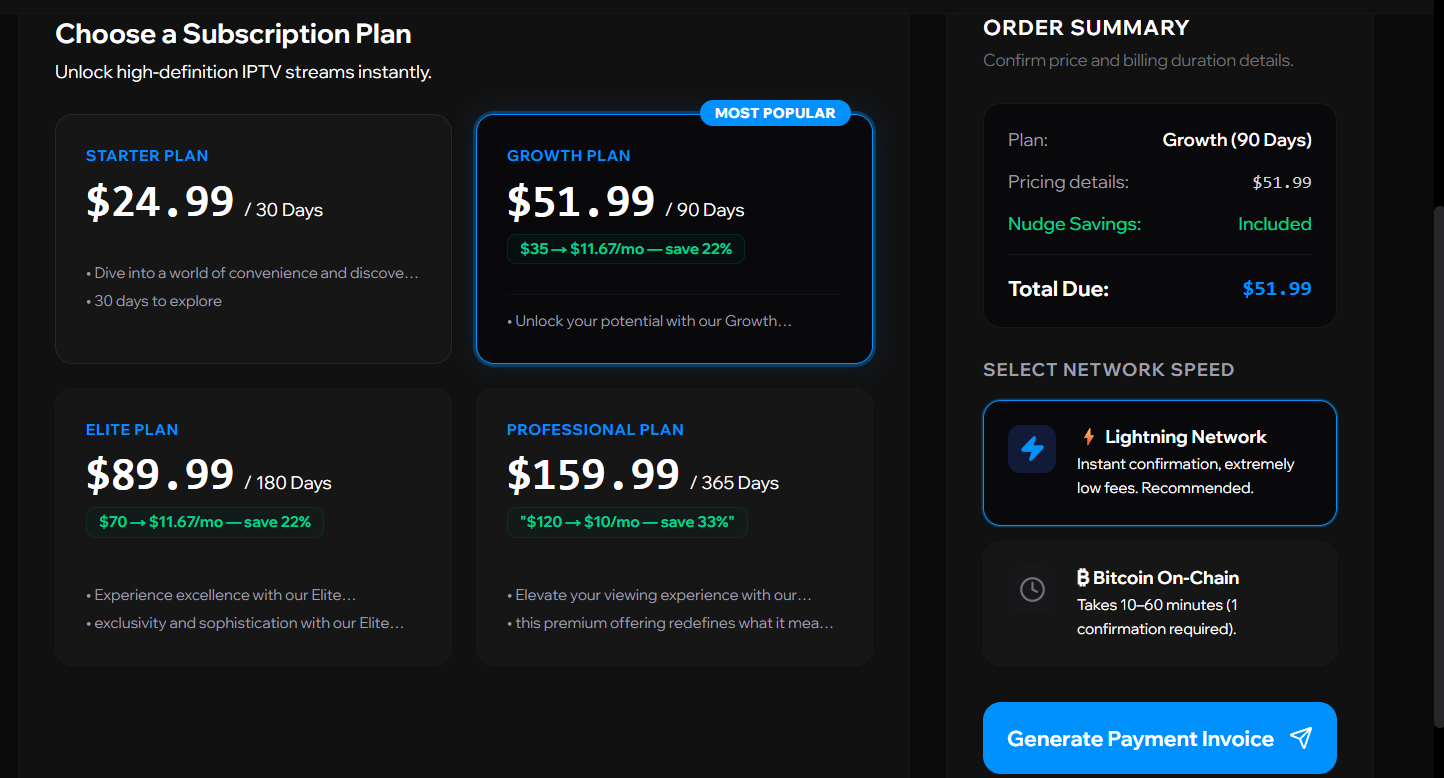
Log in to your Apollo Group TV client portal subscriptions tab, select your plan, choose network speed (Lightning is recommended for instant delivery), and click “Generate Payment Invoice”.
Step 20
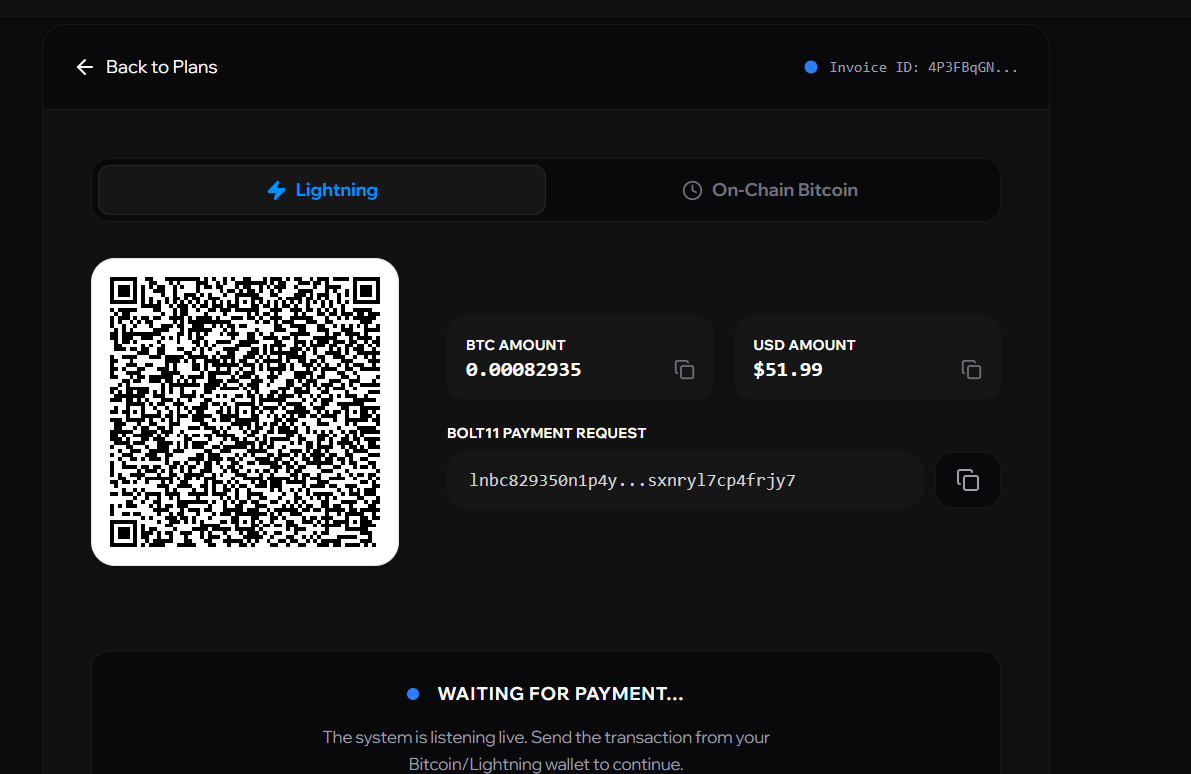
An invoice will load displaying a QR code and a destination Bitcoin wallet address. Click the copy icon to copy this address.
Step 21
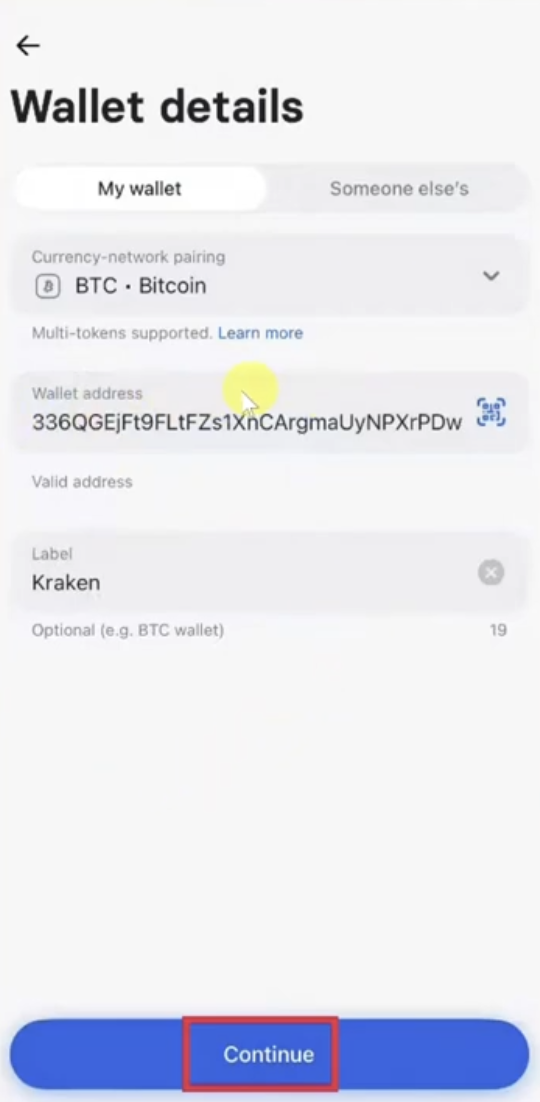
Switch back to Revolut and paste the copied Bitcoin destination address in the Wallet address field. Set the Label (e.g., "Digital") and tap Continue.
NOTE: A network/transaction fee of around an extra $5 USD may be added depending on the volume.
Important NOTE: If Revolut complains of an unsupported wallet address, it usually means the invoice expired or the network type chosen did not match. Return to Apollo, click 'Back to Plans', and generate a fresh invoice starting from Step 19.
Step 22
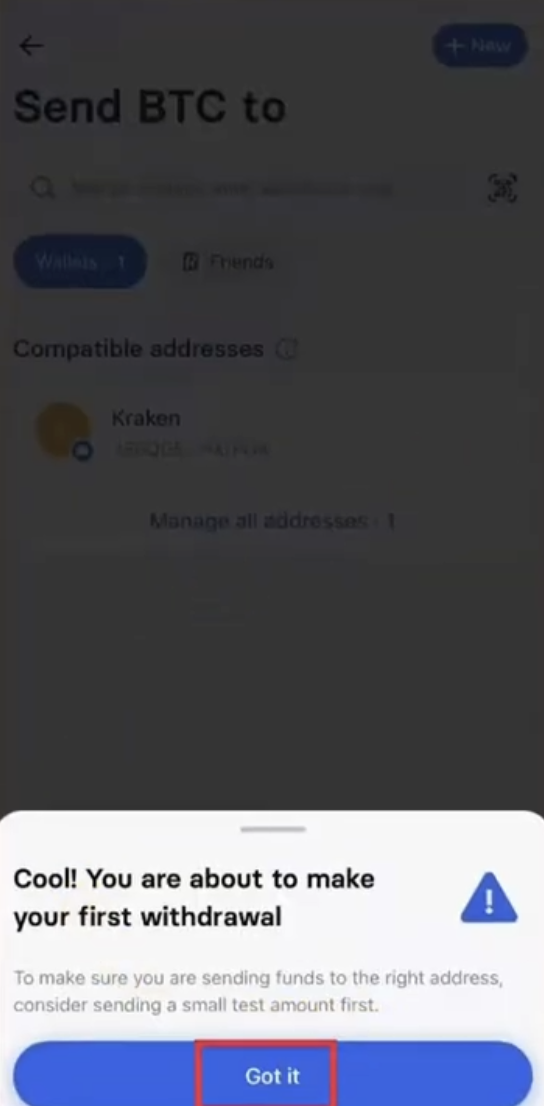
If you see a prompt about making your first withdrawal, read the safety warning and tap Got it.
Step 23
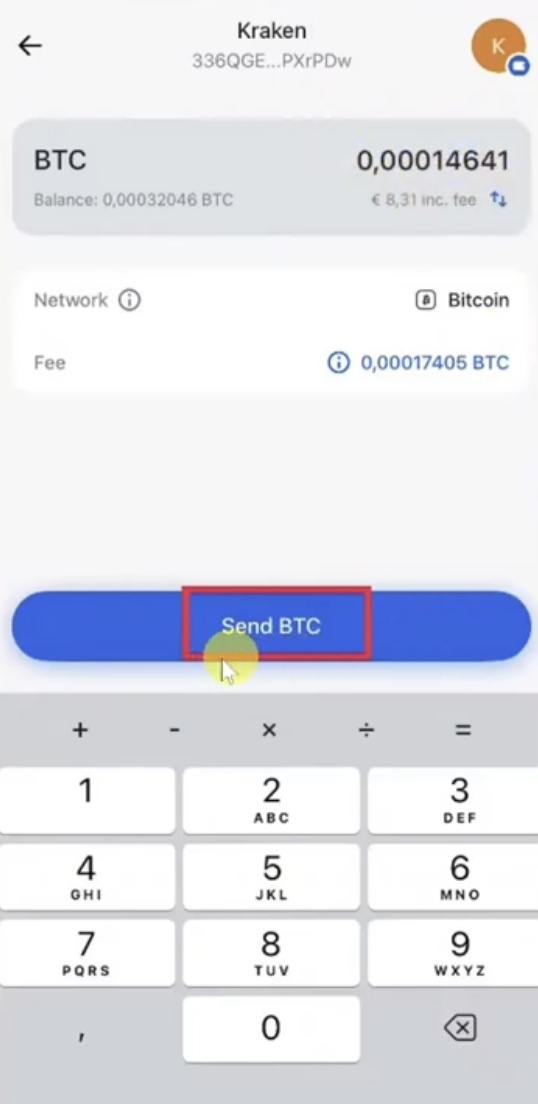
Enter the amount of BTC to send matching your subscription invoice, and tap Send BTC.
Step 24
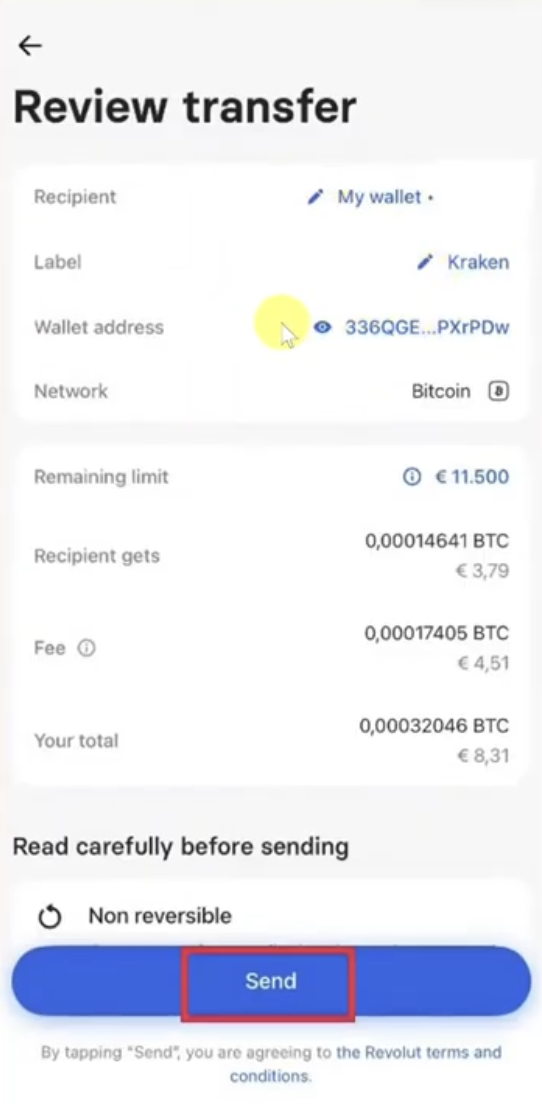
Review all the transfer details carefully, and tap Send to finalize the transaction.
Step 25