
Apollo Group TV - Shakepay Guide
Need a different guide? Click hereStep 1
Before starting, ensure your Shakepay wallet is funded. You can fund your CAD wallet instantly by sending an Interac e-Transfer from your Canadian bank account to Shakepay.
Step 2
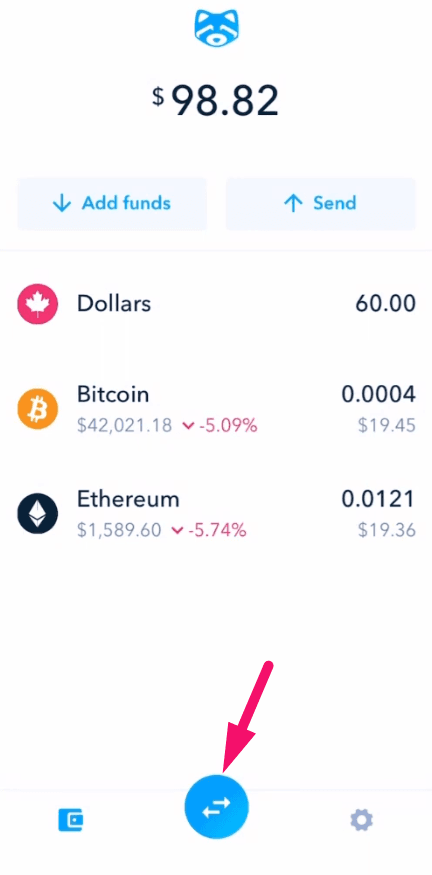
Open the Shakepay app and tap the blue exchange button (sideways arrows icon) in the bottom navigation menu.
Step 3
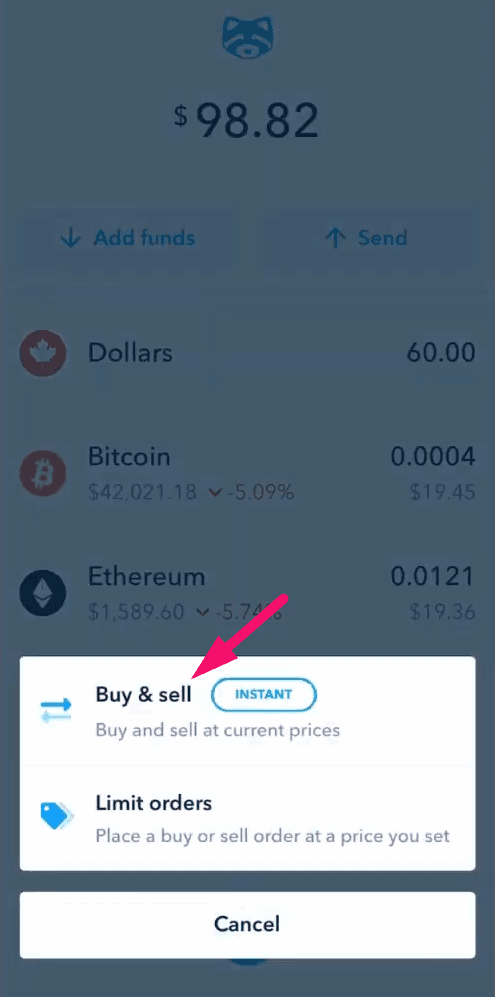
Tap on “Buy & sell”.
Step 4
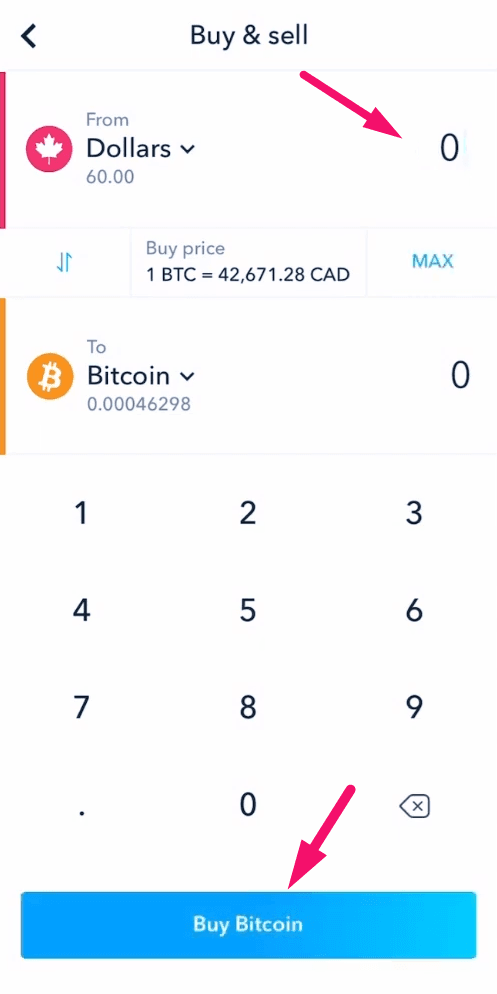
Enter the purchase amount in CAD required to cover your subscription plan, then tap “Buy Bitcoin”.
NOTE: A network/transaction fee of around an extra $5 USD may be added depending on the network congestion.
Step 5
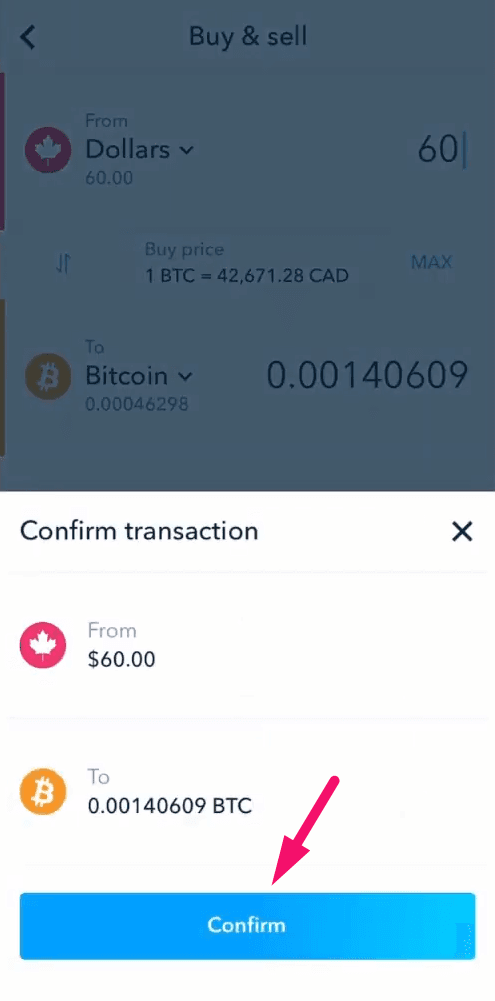
Review the transaction details and tap “Confirm”.
Step 6
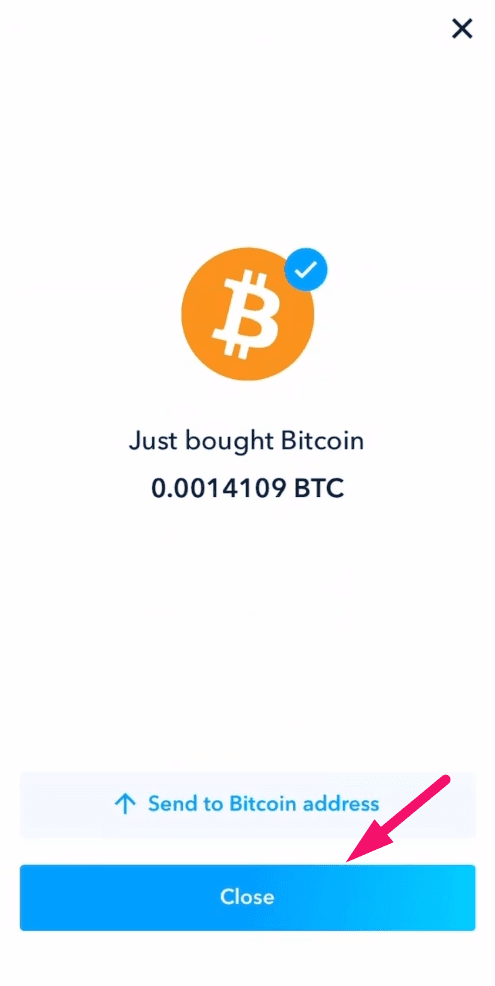
Once the purchase completes successfully, tap “Close”.
Step 7
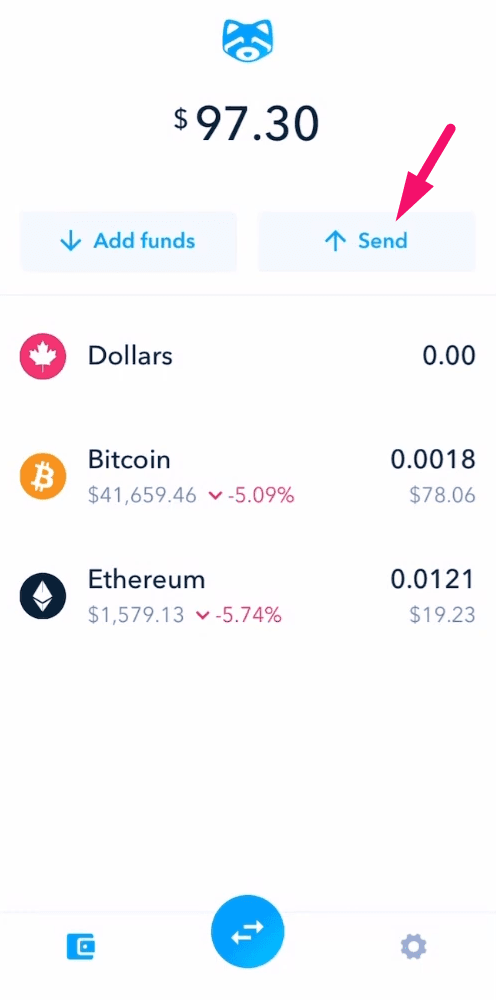
Go back to the main dashboard screen and tap “Send”.
Step 8
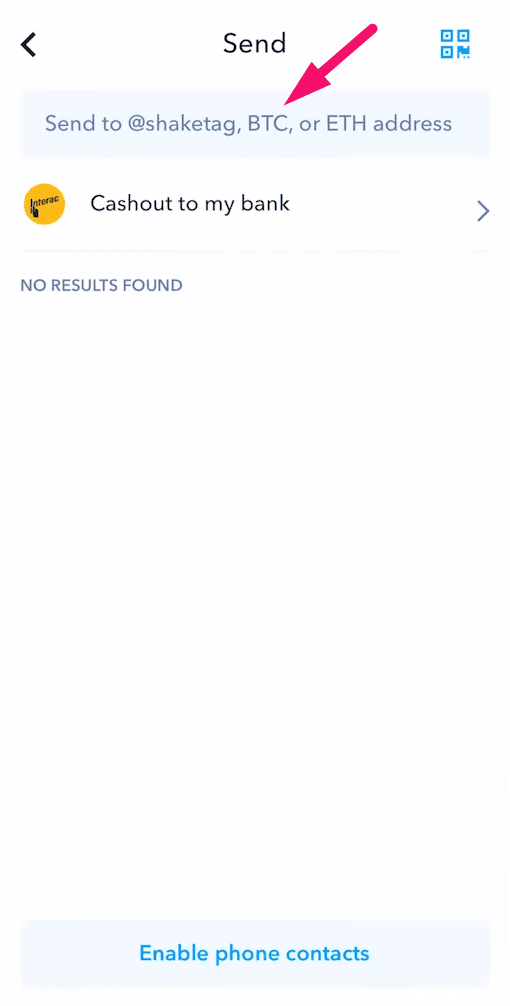
You will see a recipient address input field. To find and copy the correct address, keep Shakepay running in the background and follow the next steps.
Step 9
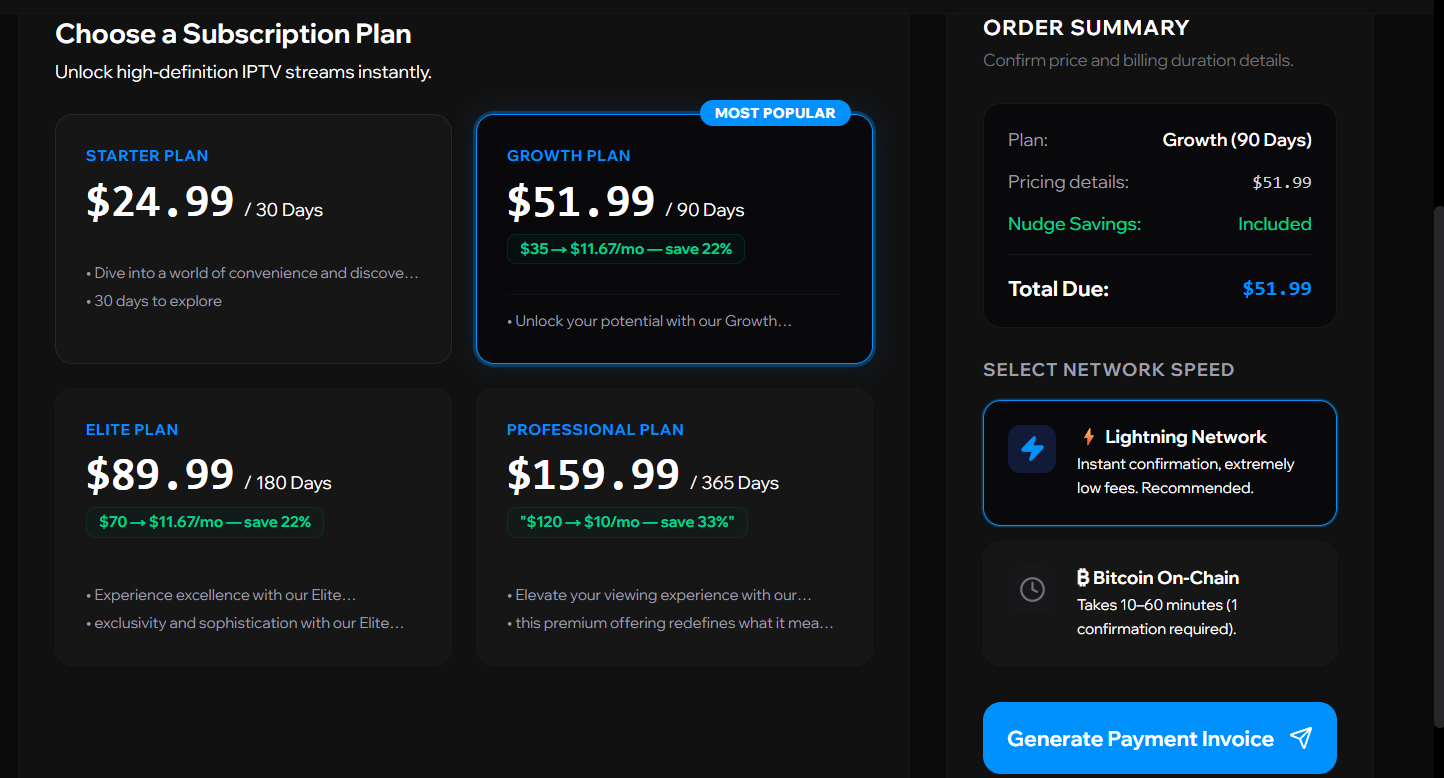
Log in to your Apollo Group TV client portal subscriptions tab, select your plan, choose network speed (Lightning is recommended for instant delivery), and click “Generate Payment Invoice”.
Step 10
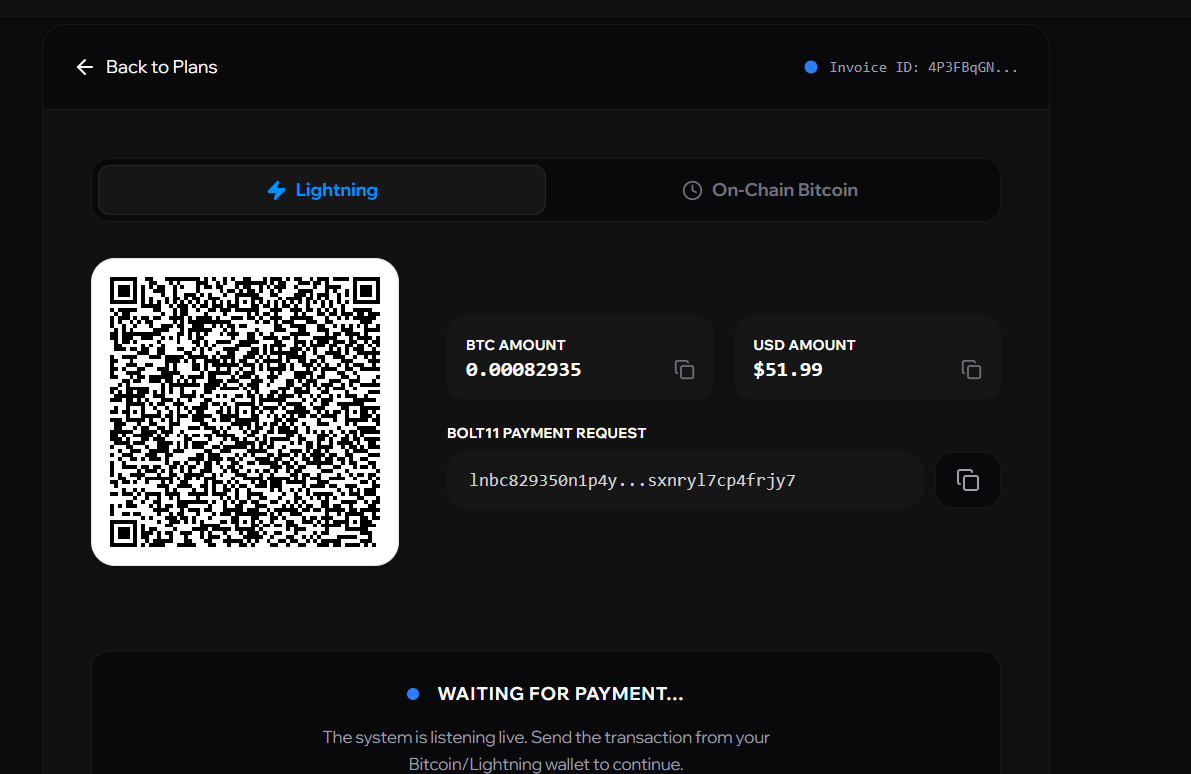
An invoice will load displaying a QR code and a destination Bitcoin wallet address. Click the copy icon to copy this address.
Step 11
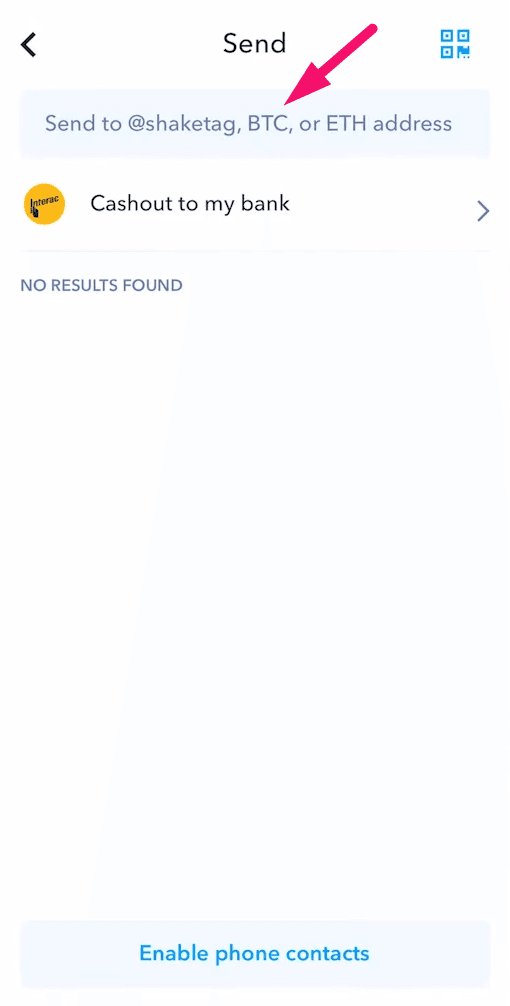
Switch back to Shakepay and paste the copied Bitcoin destination address in the recipient search field at the top.
Important NOTE: If Shakepay fails to recognize the address, it usually means the invoice expired or the network type chosen did not match. Return to Apollo, click 'Back to Plans', and generate a fresh invoice starting from Step 9.
Step 12
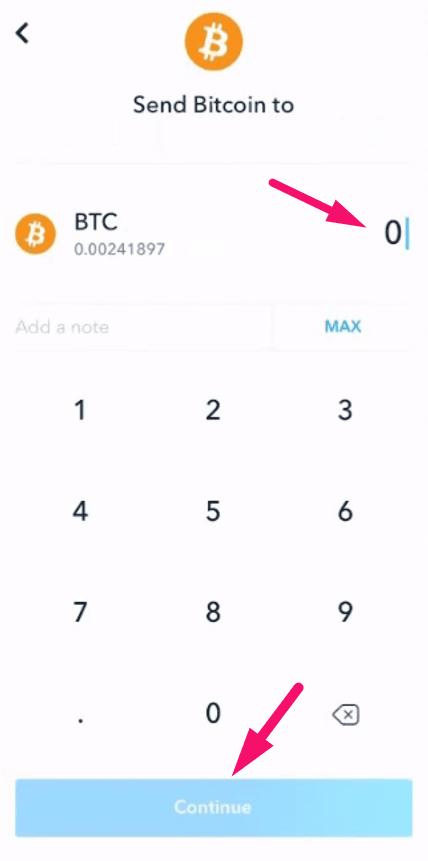
Enter the amount of your subscription choice in BTC/CAD and press on “Continue”.
Step 13
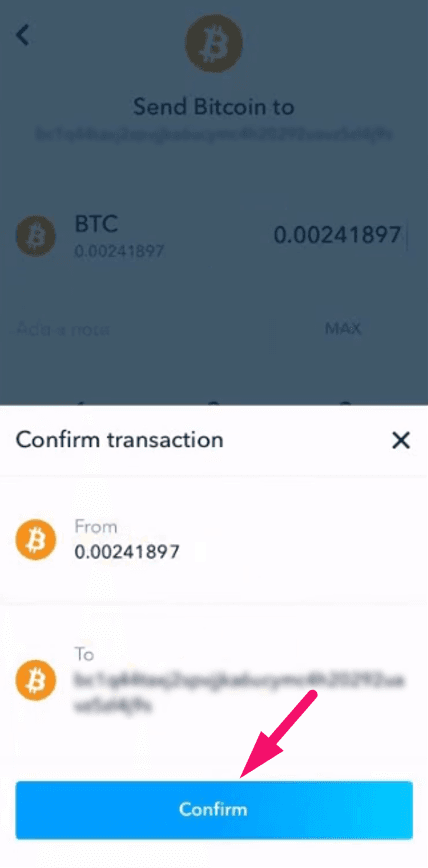
Review the transaction details and tap “Confirm” to execute the transfer.
Step 14